Finding your way around
The same landmarks come back on every Kiteba screen. Once you have those, the rest teaches itself.
In brief
- Why your menu does not have the same entries as your colleague's.
- How to filter a list and undo it in one click.
- How to deal with several students or sessions in a single move.
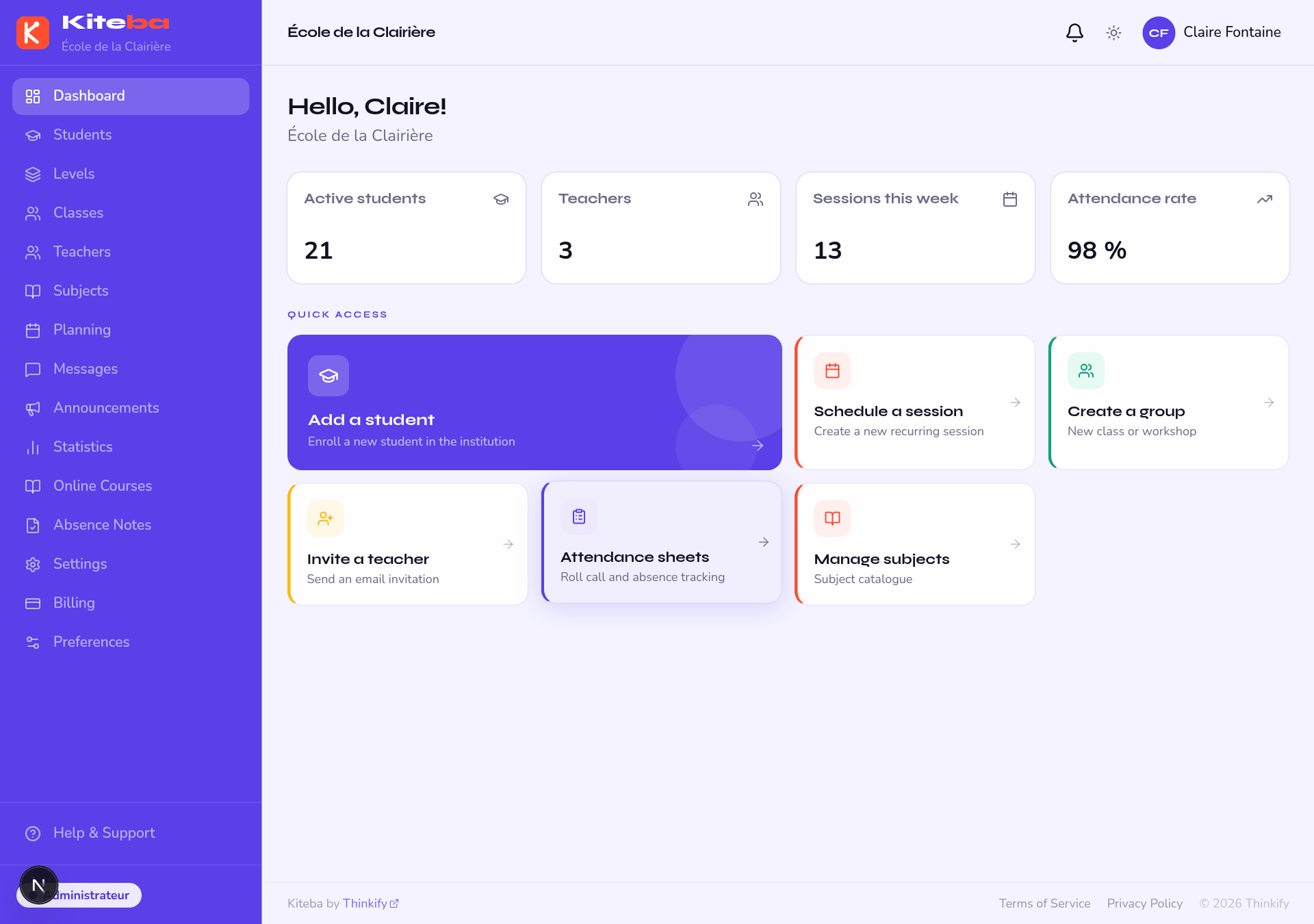
The menu
The menu only holds what you are entitled to. Two things make it vary:
- your role — a teacher sees My classes and My schedule where the administrator sees Students and Planning;
- the features switched on — if the school has turned announcements off, the Announcements entry disappears for everyone.
If an entry is missing when you think you should have it, it is almost always one of those two reasons. See Features you can switch.
The bell
The bell shows your unread notifications and refreshes on its own, without reloading the page. What appears there depends on your preferences.
Filters and search
Lists — students, sessions, messages, absence notes — are filtered from the fields above the table. As soon as a filter is active, a cross button appears to the right of the last field: it clears the list in one click, without emptying each field by hand.
The criteria are written into the page address. So you can bookmark a filtered list, or send it to a colleague: they will see exactly the same thing.
Long lists
Past a certain number of rows, the list is split into pages. The bar at the bottom tells you where you are and how many items match your criteria. Changing page keeps your filters.
Bulk actions
On screens that allow it, a tick box at the start of each row brings up an action bar: assign a class, change a level, complete or cancel sessions, delete in bulk. It is the quickest way to deal with a new term or a cancelled week.
There is no undo button afterwards. Check the number of items shown in the confirmation before you commit — that is your last safety net.
Theme and comfort
The interface follows your system's light or dark theme. On long lists, remember your browser zoom (Ctrl + +): the layout adapts.