Planning and sessions
You do not enter lessons one by one: you describe slots that repeat, and Kiteba rolls out the sessions. This is what saves the most time — and what surprises people most at first.
In brief
- The difference between a recurring slot and a session.
- Why the timetable does not run beyond eight weeks.
- How to clear a holiday week in a single move.
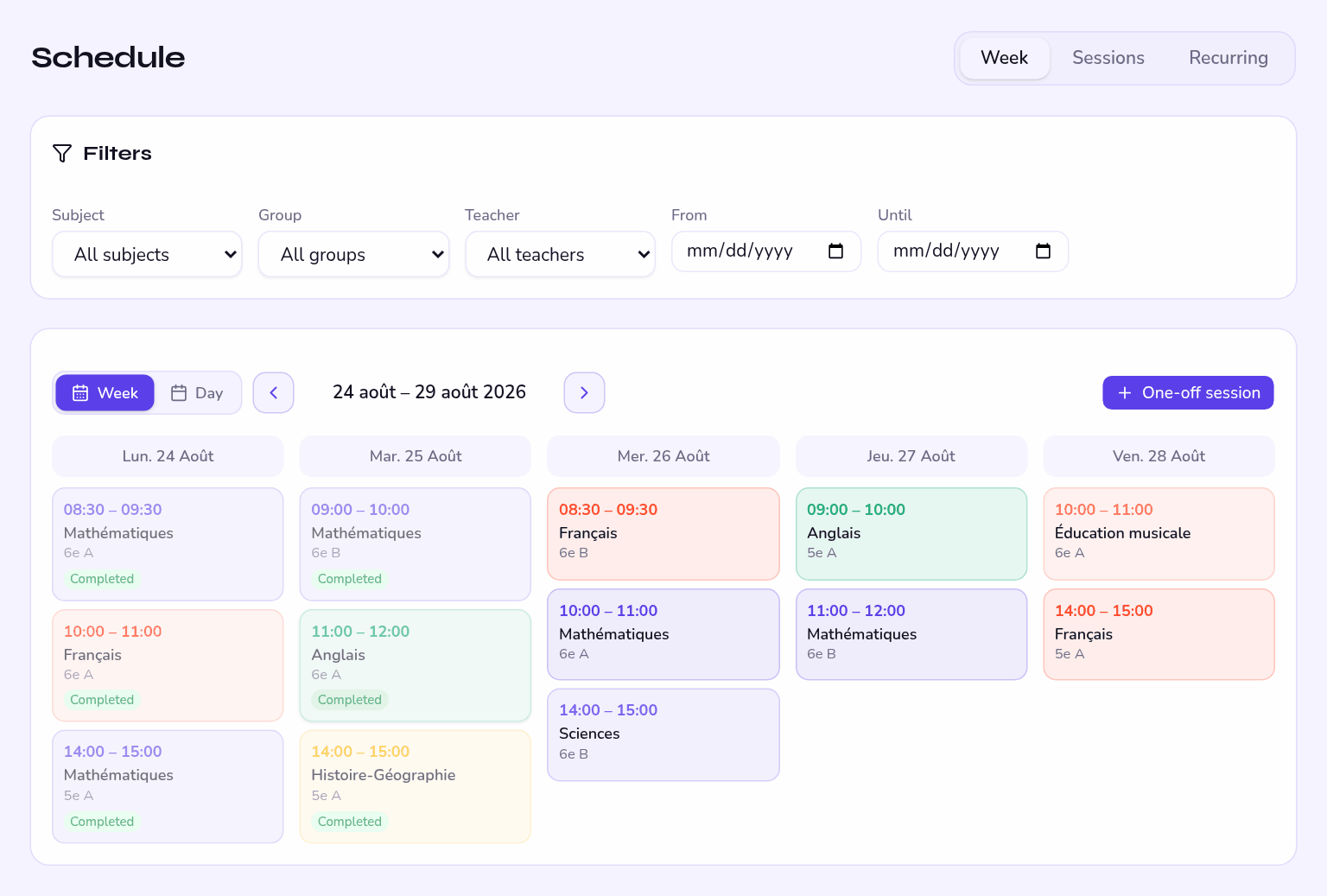
One slot, many sessions
A slot describes a habit: "Tuesdays 2 to 3 pm, Mathematics, 7B, Mr Dupont, room 12". From there, Kiteba creates the actual sessions — the ones you take attendance on and hang assessments off.
Sessions are only laid down for the next eight weeks, and the window moves forward on its own. Beyond that your slot does exist, but the sessions are not yet materialised: that is normal, and there is nothing to do about it.
Creating a slot
- Open Planning Then New session to describe a new slot.
- Describe the lesson Subject, teacher, group, room. The teacher named here is the one who will see the session in their space and be able to take attendance.
- Set the rhythm Day of the week, start and end time, and the period over which the slot applies.
- Save The coming weeks' sessions appear at once in the teacher's schedule and in the schedules of the students in the group.
A one-off session
A catch-up lesson, a rehearsal before a concert, a visiting speaker: create a one-off session, independent of any slot. Nothing repeats.
Holidays and closures
Declare your holiday periods for the school year: those dates are excluded automatically and no session is created on them.
Entering holidays afterwards does not remove sessions already laid down on those dates: you will have to cancel them by hand. Five minutes at the start of the year saves a lot later.
Working days
The school declares its opening days — Monday to Saturday by default — in Settings. An unticked day disappears from the timetable: nothing can be seen or scheduled on it. If you open exceptionally on a Sunday, tick it first.
The timetable view
The same view serves all four roles, with three scales — day, week, month — and filtering by teacher, group or subject. Everyone only sees their own perimeter: the teacher their lessons, the student theirs, the parent their children's.
Changing or cancelling
Changing a slot regenerates the coming sessions. For a one-off cancellation — a teacher away, a room unavailable — go through the session itself: tick it in the list and use Cancel session.
The Session cancelled alert goes out to those affected, according to their notification preferences. No need to double up with a message.