Taking attendance
You mark your students session by session, from the attendance sheet. Each one gets one of four states, and an absence alerts the parents automatically. Allow two minutes at the start of the lesson.
In brief
- The three ways to open the attendance sheet.
- What each of the four states means, and which one to pick.
- Why a sheet may turn read-only.
- What to do if your session does not appear.
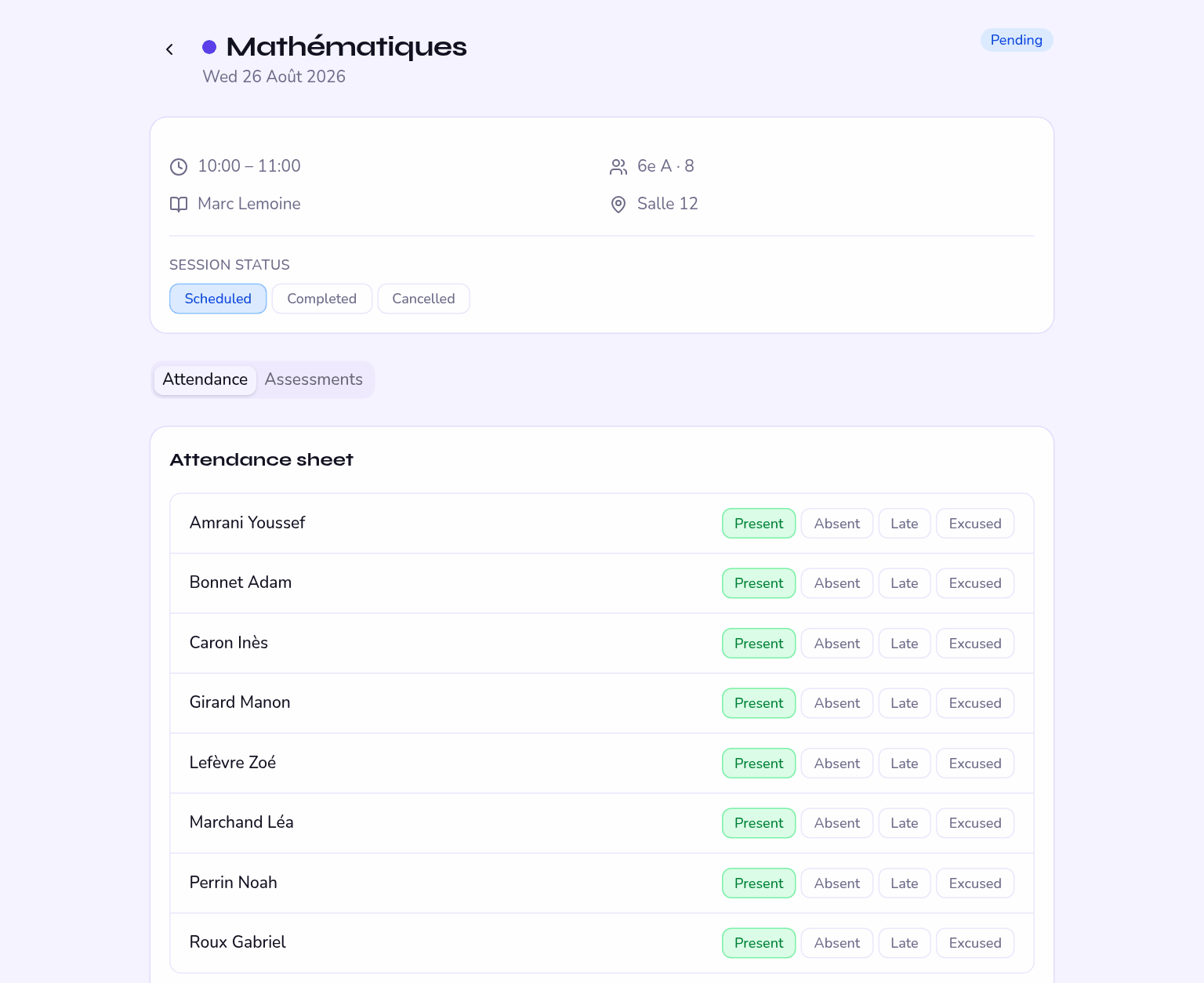
Opening the attendance sheet
Three routes lead there. Take whichever suits your habits.
- The quickest: from the dashboard The Take attendance shortcut opens the day's session directly. That is the route to remember if you only have one lesson to mark.
- From the timetable Open Sessions in the menu, pick your session, then the Attendance tab. The Attendance column in the list shows at a glance which sessions are done and which are still Pending.
- To catch up on a forgotten one Attendance gathers all your sessions with their entry status. That is where you find last Tuesday's lesson you forgot to mark.
The four states
A student you have not marked is not counted as absent: the sheet is simply incomplete until everyone has a state.
| State | When to pick it | What it triggers |
|---|---|---|
| Present | The student is here. | Counts towards the attendance rate. Nobody is notified. |
| Absent | The student did not turn up and you do not know why. | Notifies the parents. The absence appears in the student's record and on their end-of-term report. |
| Late | The student arrived after the lesson started. | Notifies the parents, with an alert distinct from absences. |
| Excused | The absence is known and legitimate: school trip, exemption, note already accepted. | Drops out of the absence count. Shown as Excused in the statistics. |
If a student brings you a note afterwards, you can move the row to Excused — as long as the sheet is not locked, it stays editable and the attendance rate recalculates itself.
Saving
Nothing is sent until you click Save attendance. The message Attendance saved ✓ confirms it has gone through — if you do not see it, your entry was not recorded.
What an absence triggers
Recording an absence or a late arrival creates a notification for the parents linked to the student, and for the student themselves if they have an account. An email goes out as well, provided the person has allowed it in their preferences.
Preferences live in each user's profile, and keep Late arrivals separate from absences. A parent who has switched emails off will still see the notification when they sign in: nothing is lost.
When the sheet is locked
An attendance sheet can be locked by the office. It then shows the states recorded but accepts no further change: that is what freezes the numbers for a term before report cards.
Once locked, the sheet can no longer be changed by anyone — including the school administrator. Read your entries through before the end of term: afterwards there is no going back.
Your session does not appear?
Four explanations, from the most common to the rarest:
- The day is not a working day. Your school declares its opening days, Monday to Saturday by default. A session placed on an undeclared Sunday does not show.
- The date falls in a holiday. Holiday periods entered by the administrator automatically remove the sessions concerned.
- The session is too far ahead. The timetable is only built for the next eight weeks. Beyond that your slot does exist as a repeating rule, but the sessions are not yet laid down day by day.
- The group is not attached to you. You only see sessions where you are named as the teacher. In that case the administrator has to fix the assignment.
Where these numbers go
The attendance rate you feed shows up on the dashboard, on each student's tracking page and in the attendance summary of their report card. On the administration side, Attendance gives the breakdown by group and by term.