Online courses
Publish a structured course your students work through at their own pace, with text, images and quizzes. You then see where each of them has got to.
In brief
- How to tell whether the option is switched on at your school.
- The structure of courses, modules and blocks.
- What the student and the parent see.
Is it available to you?
Online courses are included in the Pro and Growth plans, available as an add-on on Starter, and open to everyone during the trial. If the entry is not in your menu, your school has not subscribed to it: ask your administrator.
How a course is built
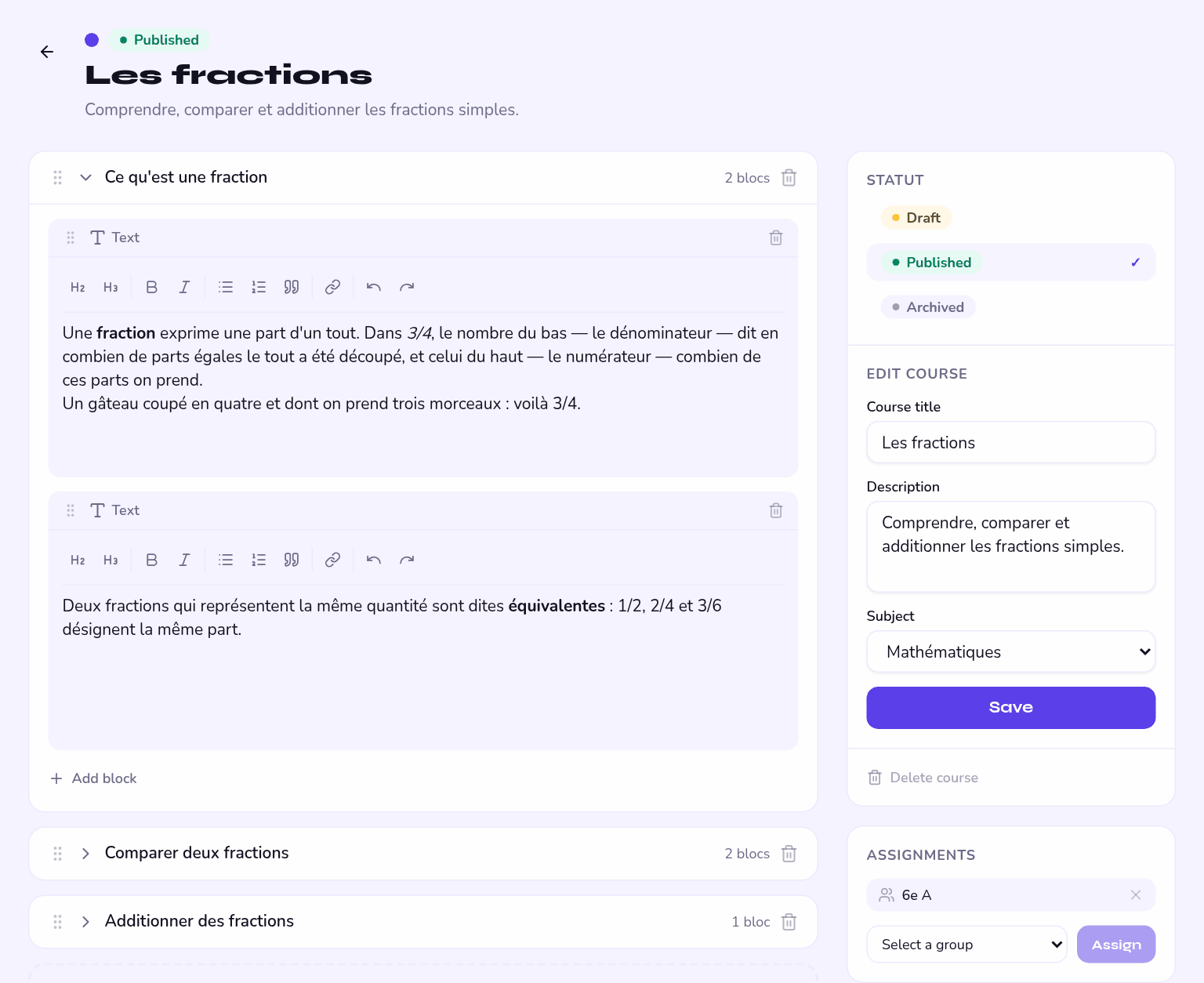
Three levels, from the widest to the finest:
| Level | What it is | Example |
|---|---|---|
| Course | The unit you assign to a group. | Harmony — second year |
| Module | A chapter inside the course. | Seventh chords |
| Block | A piece of content inside the module. | A text, an image, a quiz |
Kinds of content
- Rich text — formatting, lists, links.
- Image — automatically reduced to 1,200 pixels wide, which spares the school's storage.
- Quiz — multiple-choice questions, whose results are kept.
- External content — embedding a third-party tool.
Draft, published, archived
| State | Who sees it |
|---|---|
| Draft | You alone. This is the default. |
| Published | The students in the groups the course is assigned to. |
| Archived | Nobody on the student side. The content is kept. |
This is the most common cause of "I cannot see anything" on the student side: the course was built and assigned, but never published.
Assigning to a group
A course is assigned to a group, and all its students are enrolled automatically. You do not have to add them one by one, nor to handle arrivals during the year.
Tracking progress
You see each student's progress block by block, along with their quiz results. The parent, for their part, follows their child's progress from their own space.
It says what has been worked through, not what has been understood. To assess, rely on the quizzes or on a regular assessment.