Teachers and subjects
Your team reaches Kiteba by invitation. Once attached to the right subjects and the right groups, their schedule fills itself in.
In brief
- How to invite a teacher and what they receive.
- Why a subject has to exist before the timetable.
- What explains a teacher not seeing a class.
Inviting a teacher
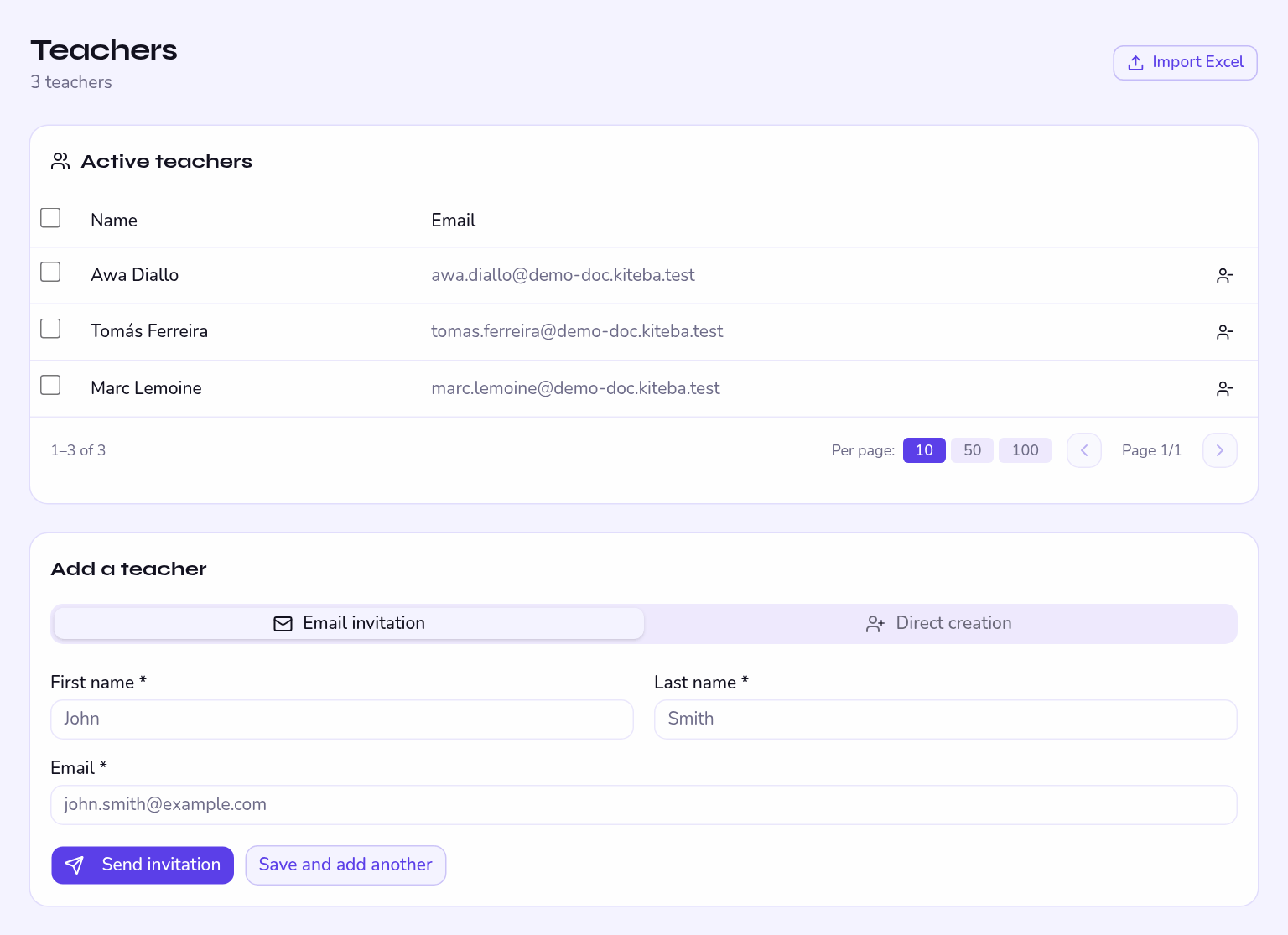
- Create the invitation From Teachers, enter the name and email address. The invitation goes out immediately.
- The teacher opens the link They choose their password and land straight in the school, with the teacher role.
- They take the guided tour Four steps, once only. After that they are on their own feet.
A teacher can be assigned to groups before they have even accepted the invitation: their schedule will already be waiting at first sign-in.
Subjects
A subject is what gets taught: Mathematics, Music theory, Workplace safety. It is used in three places — the timetable, assessments and comments — so it has to exist before you lay down your slots.
Each teacher is recorded against the subjects they cover. That list feeds the filters and the per-subject statistics.
Assigning to groups
A teacher only sees sessions where they are named as the teacher. It is the timetable slot that carries that, not the teacher's record.
This is the single most common support call. In almost every case the teacher is not named on the slot in question: fix the slot in Planning and sessions and their view updates.
What a teacher sees
| They see | They do not see |
|---|---|
| Their classes, their students, their schedule. | Other teachers' students. |
| The attendance sheets for their sessions. | The school settings. |
| The grades and comments they enter. | The subscription and invoices. |
| Messages and announcements. | The student import. |
A teacher who leaves
Take them off future slots and name their replacement: the students' timetable updates with nothing further to do. The grades and comments they entered stay attached to the students — they do not disappear with the account.