Assessments and comments
An assessment hangs off a session: that is what places it in the right subject and the right term. Grades only become visible to families once you publish them.
In brief
- How to create an assessment and where it appears.
- The difference between publishing and locking.
- The rule to know about comments: one per student, subject and term.
Creating an assessment
- Open the session concerned From your schedule, then the Assessments tab and New assessment.
- Describe it A title — e.g. Chapter 3 test —, a Max score and a Coefficient. Nothing forces you to mark out of 20.
- Create The assessment appears on the session. Grades are entered next.
The title is reproduced as is in the parents' space and on the report card. "Chapter 3 test" will be more use there than "Test 2".
Entering grades
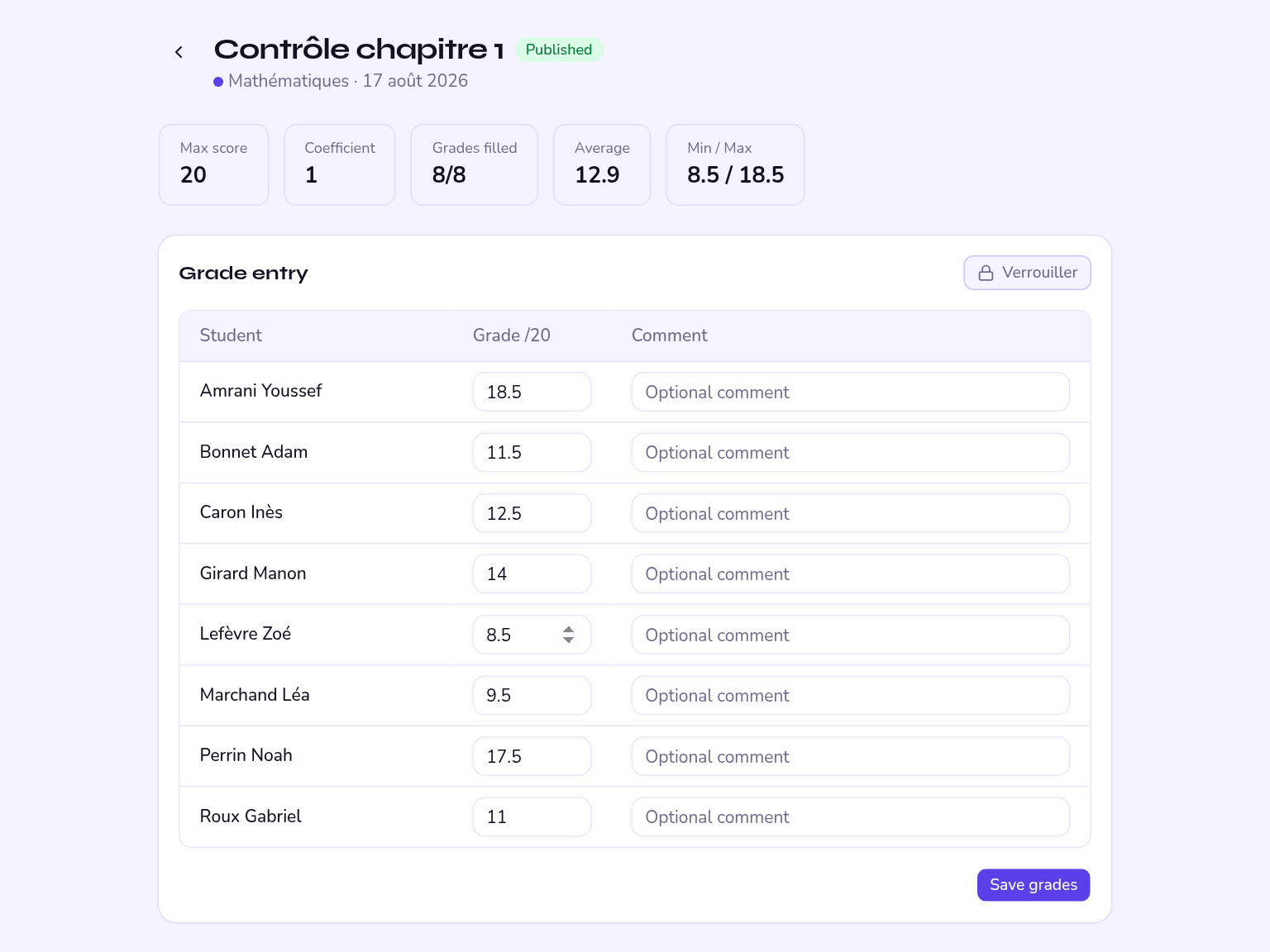
Enter grades shows the students in the group, with a Grade column and an optional Comment column. The message Grades saved ✓ confirms the save.
The screen also shows the average, the minimum and the maximum, along with how many grades are already entered — handy for spotting a student you missed.
Publishing grades
An assessment you have created is not visible to students. It is Publish that makes it readable and triggers the Grade published alert.
Unpublish hides the assessment again. Useful if you notice a mistake in the scale afterwards.
A locked assessment
Locking is decided by the office at the end of term. The assessment then turns read-only and shows Assessment locked — read only.
Neither you nor the administrator can go back on it. If you spot a mistake after locking, the only way out is to create a corrective assessment.
Writing comments
A comment covers one student × subject × term. There can only be one per combination: a new entry replaces the previous one.
The Assessments screen filters by level, class and subject, so you can work through a whole class in one go without changing screen.
Before report cards
Three checks before a term closes:
- your attendance sheets are complete;
- your grades are published, and attached to the right term;
- your comments are written for every student in each of your subjects.